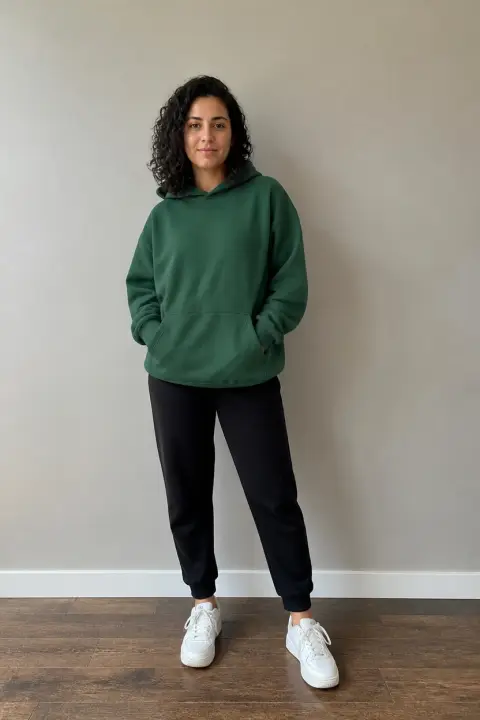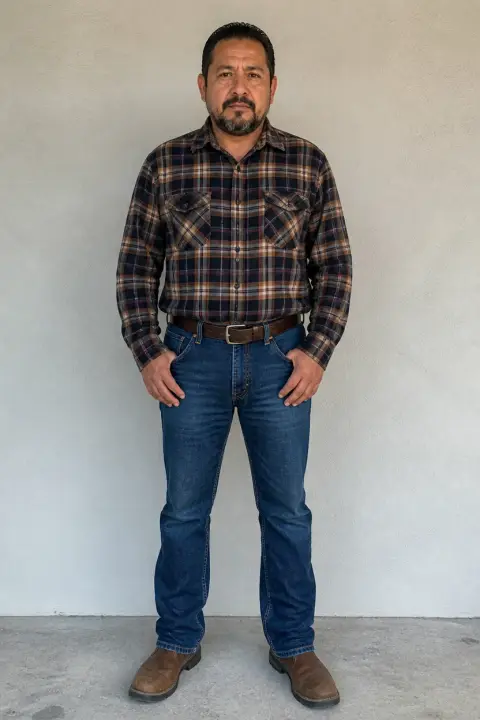
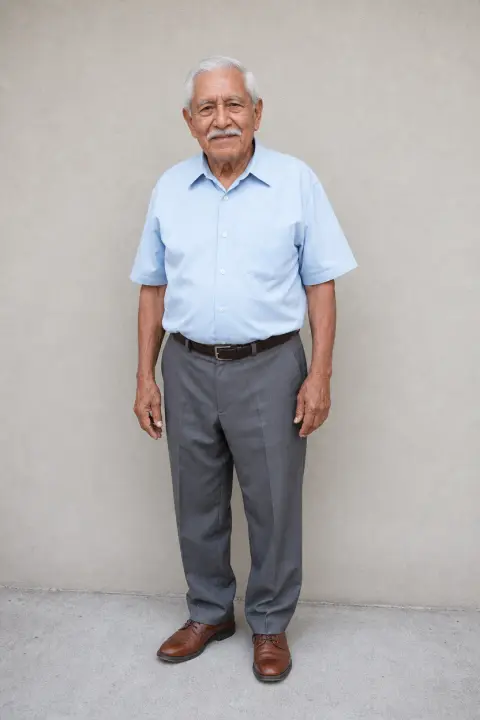
Three image modes
References: up to four images the video draws from, such as a person, a product and a location. First frame: the video opens on your exact image. First & last: it starts on one image and ends on another.
Image to video
Turn a photo into a video with AI. Upload up to four reference images, or set a first and last frame, describe the motion, and get an MP4 with sound from Seedance, MiniMax H3 or Kling 4.
Image to video examples
Each of these clips began as one still image, animated by the models on this page.
How to use
Choose a mode: References (up to four images of people, products or places), First frame, or First & last. Drag in JPG, PNG or WEBP files, paste from the clipboard, or tap to browse. Large phone photos are resized automatically.
Write who moves and how, where the camera goes and what we hear. With references, say what each image is for, for example: the woman in image 1 walks into the café in image 2. Then pick the model, length and quality; the button shows the cost before you pay.
Press Create. The finished MP4 appears on the page and is saved to My videos.
AI video models
Seedance 2.5, Seedance 2.0 and MiniMax H3 accept references, a first frame, or first and last frames; Kling 4 accepts a first frame or first and last frames. All four add sound, and MiniMax H3 can also end on a last frame alone. With frames, Seedance 2.5, MiniMax H3 and Kling 4 keep your image’s aspect ratio while Seedance 2.0 lets you choose; with references, you pick the ratio.
Seedance 2.5ByteDance
Single takes up to 30 seconds, with sound
Seedance 2.0ByteDance
Multi-shot scenes with sound, six aspect ratios
MiniMax H3MiniMax
Short 2K clips, always with sound
Kling 4Kuaishou
720p clips from 3 seconds, always with sound
Features
References: up to four images the video draws from, such as a person, a product and a location. First frame: the video opens on your exact image. First & last: it starts on one image and ends on another.
With a first or last frame, Seedance 2.5, MiniMax H3 and Kling 4 keep your image’s proportions, and Seedance 2.0 offers six ratios, preselecting the closest one. With references, you choose the ratio.
Wind, chatter in the room, a passing car: audio is generated with the picture and matched to the motion. Seedance lets you turn it off; MiniMax H3 and Kling 4 always include sound.
Uploaded images are used only to make your video and are deleted when you delete it.
First frame
The model can only work with what it sees. A clean image matters more than a long prompt.
01One clear subject
A person, product or animal that fills a good part of the frame, not a crowd.
Half-body portrait, face visible
02Leave room to move
Leave space in the direction of motion, and avoid cropped heads or hands.
Subject left of center, walking right
03Sharp and well lit
Blur and noise become flicker in motion. Use the sharpest version you have.
Daylight, in focus, no heavy filter
04Prompt the motion
The image already shows the scene, so use the prompt for motion, camera and sound.
She turns and smiles; slow push-in; café noise
FAQ
AI image to video animates still pictures into a video clip. Upload up to four images as references, one as the first frame, or two as first and last frames, then describe the motion, camera and sound in a prompt. The result is a downloadable MP4.
Frames appear exactly as uploaded: the video opens on your first frame and, with First & last, ends on the last one. References are not shown as-is; the model borrows the people, products, places or style from them and builds the scene your prompt describes. Use frames when the exact image matters, and references to combine several.
A sharp image with one clear subject and some space around it. Portraits, product shots, pets, landscapes and illustrations all work well. Cluttered scenes, heavy filters and tiny faces give the model less to work with.
JPG, PNG and WEBP. Large photos are resized in your browser before upload, so phone photos work as they are. You can also drag an image onto the box or paste it from the clipboard.
With a first frame or first and last frames, Seedance 2.5, MiniMax H3 and Kling 4 follow your image’s proportions, and Seedance 2.0 lets you pick one of six ratios, preselecting the closest. With references, you choose the ratio on every model that supports them.
Yes. Frames decide where the video starts or ends, references decide who and what appears, and the prompt decides what happens. With references, refer to them by number, for example: the woman in image 1 walks into the café in image 2.
Yes. Choose First & last and add the image you want to end on as the last frame. On MiniMax H3 the first frame is optional, so a video can simply arrive at your image.
Yes. Every model generates audio with the picture. On Seedance 2.5 and 2.0 you can turn it off with the speaker button; MiniMax H3 and Kling 4 always render sound.
They are used only for your video and deleted when you delete it. Images uploaded but never used are removed within 24 hours.
Price depends on model, length and quality; references and frames cost the same. The Create button shows the exact amount before you pay. Credits are sold in one-time packs, never expire, and return to your balance automatically if a render fails.